Photo to calendar event on iPhone
A photo becomes a calendar event on iPhone in Snap to Calendar: photograph a schedule, flyer, appointment card, or invite, review the events it finds, and save only the ones you approve to Apple Calendar.
Three steps
- Choose a photo or screenshot already on your iPhone.
- Review dates, times, places, and notes. Edit anything that is wrong, and uncheck a row you do not want.
- Save the approved set to the Apple Calendar you choose.
A page with many dated rows should become many editable events from one scan. A printed end time stays when the page shows one. A date with no time stays all-day. After saving, one tap undoes that set. If the app is not confident it read the page, it says so.
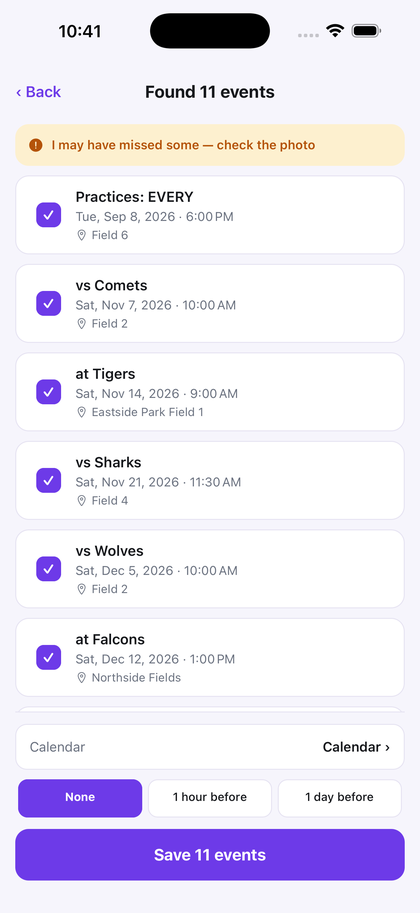
Start from a sports schedule, a flyer, a school calendar, an appointment card, a work invite, or a screenshot.
The first 3 successful scans are free, with no deadline. Pro is $4.99 a month or $29.99 a year. The price shown in the app at purchase governs. There is no account.
Questions
How do I turn a photo into a calendar event on iPhone?
Open the photo in Snap to Calendar, review the dates and times it found, edit anything that is wrong, and save the approved events to Apple Calendar.
Can one photo create more than one event?
Yes. A schedule or flyer with several dates can become one review list. You choose which events to save.
Does it need an account?
No. Snap to Calendar does not require an account or sign-up.
Photograph the page, check the events, and save only what you approve.
Download on the App Store