Screenshot to calendar app
Snap to Calendar is a screenshot to calendar app for iPhone: choose a screenshot of an invite, message, confirmation, or schedule, review the events it proposes, and save only the ones you approve to Apple Calendar.
How to use it
- Keep the event name, date, time, and place in the screenshot.
- Open Snap to Calendar, tap Choose photo, and select that screenshot.
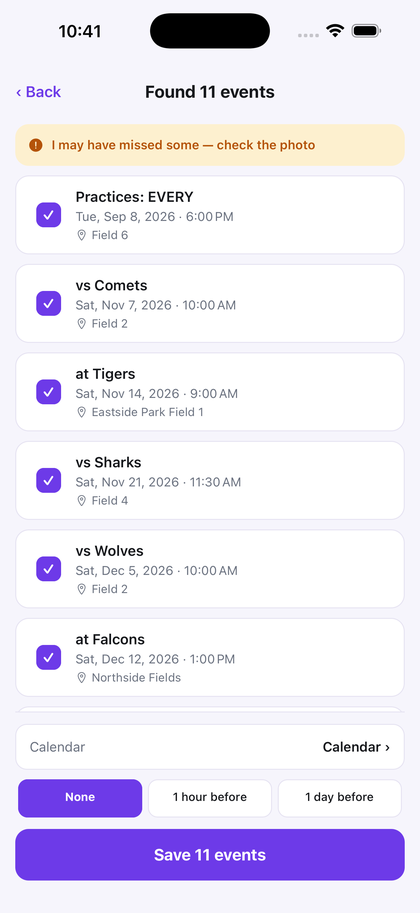
- Check each candidate. Edit a title or time, or uncheck a row you do not want.
- Save the approved events. Several dated rows can become one review list.
Nothing is saved until you have seen it. If the app is not confident it read the page, it says so. After a save, one tap undoes that set. A printed page belongs in the photo to calendar event guide. A paper notice uses add a flyer to my calendar. A season uses sports schedule to calendar. Some iPhones also have Apple's own on-screen tools; that difference is on the comparison page.
The first 3 successful scans are free, with no deadline. Pro is $4.99 a month or $29.99 a year. The price shown in the app at purchase governs.
Questions
What is a screenshot to calendar app?
Snap to Calendar is an iPhone app that reads a screenshot you choose, shows the candidate events, and saves only the ones you approve to Apple Calendar.
Can one screenshot become more than one event?
Yes. Several dated rows in one screenshot can become one review list. You check each row before saving.
Does it need an account?
No. There is no account and no sign-up.
Choose a screenshot, check the result, and save only the events you approve.
Download on the App Store