Add a flyer to my calendar
You can add a flyer to your calendar on iPhone with Snap to Calendar: photograph the flyer, or choose a screenshot of it, review the dates and times it finds, and save only the events you approve to Apple Calendar.
From the paper to the calendar
- Photograph the flyer straight on, with the date and time in frame. A screenshot of a digital flyer works the same way.
- Open that photo in Snap to Calendar.
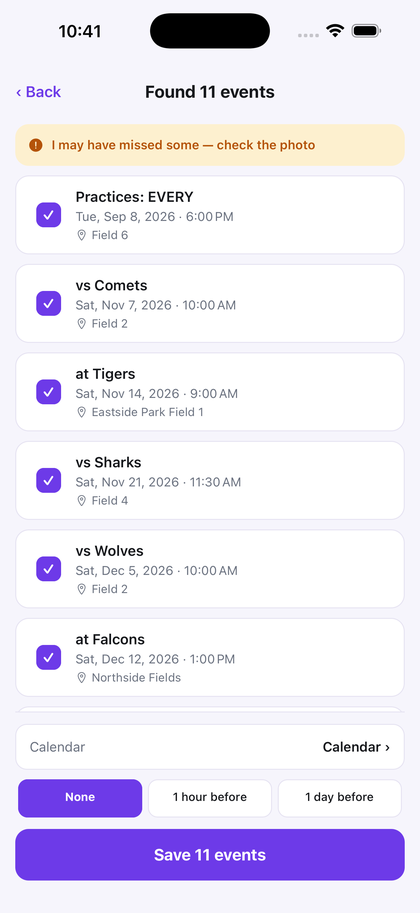
- Review every candidate. Correct a date, time, or place, and uncheck anything that is not yours.
- Save the approved events. A date with no printed time stays all-day.
Check the year when the flyer prints only a month and day. A whole term is on the school calendar page, a season on sports schedule to calendar, and a screen capture on the screenshot to calendar app page.
The first 3 successful scans are free, with no deadline. Pro is $4.99 a month or $29.99 a year. The price shown in the app at purchase governs.
Questions
How do I add a flyer to my calendar?
Photograph the flyer in Snap to Calendar on your iPhone, review the events it proposes, and save only the ones you approve to Apple Calendar.
Can a flyer with several dates become several events?
Yes. A clear flyer with more than one date can become one review list. You approve each event before it is saved.
What does it cost?
The first 3 successful scans are free, with no deadline. After that, Pro is $4.99 a month or $29.99 a year in U.S. dollars. The price shown in the app governs.
Photograph the flyer, check the dates, and save only what you approve.
Download on the App Store