How to add a school flyer to my calendar
You can add a school flyer to your calendar on iPhone with Snap to Calendar: photograph the flyer, or choose a screenshot of it, review the dates and times it finds, and save only the events you approve to Apple Calendar.
Steps
- Photograph the flyer straight on, with the date and time in frame. A screenshot of a digital flyer, or of a PDF the school emailed, works the same way.
- Open that photo in Snap to Calendar.
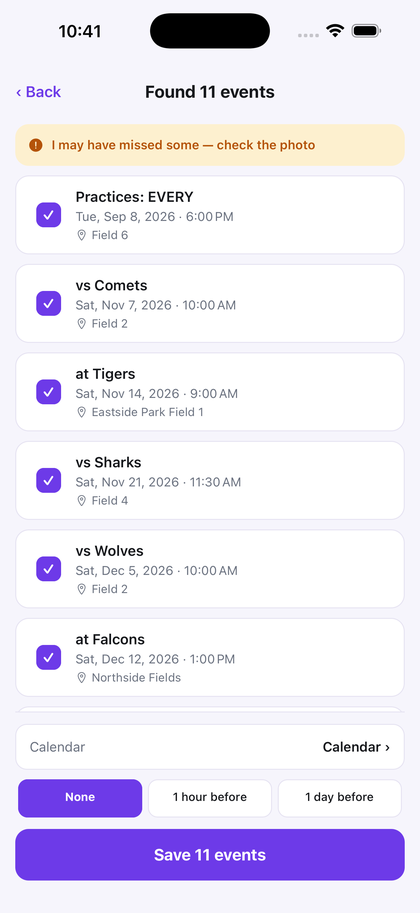
- Review every candidate. Correct a date, time, or place, and uncheck another class or year group.
- Save the approved events. A date with no printed time stays all-day.
Check the year when the flyer prints only a month and day. A whole term is on the school calendar page. Any other paper notice is on add a flyer to my calendar.
The first 3 successful scans are free, with no deadline. Pro is $4.99 a month or $29.99 a year. The price shown in the app at purchase governs. There is no account.
Questions
How to add a school flyer to my calendar
Photograph it in Snap to Calendar, review the dates, and save only the events you approve to Apple Calendar.
Can one school flyer become more than one event?
Yes. A clear flyer with more than one date can become one review list. You approve each event before it is saved.
What if the school flyer has no time?
A date with no printed time stays all-day. Check the year when the flyer prints only a month and day.
Save only the events you approve.
Download on the App Store